Import an existing sector file
Create a project from an Aurora .isc file and its supporting files.
Download this guide for offline useThis walkthrough follows the EKDK example. Use your own root sector file and supporting folders when you repeat the steps.
1. Open the Import Wizard
In Aurora Sector Studio, choose File → Import Sectorfiles….
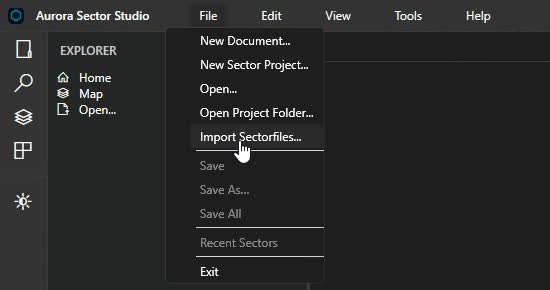
2. Select the root .isc file
On Select Root .isc, click Browse…, select the main sector file, and click Open.
The walkthrough uses C:\Aurora\SectorFiles\EKDK.isc.
Keep its supporting files and folder structure available while importing.
Confirm the selected path, then click Next.
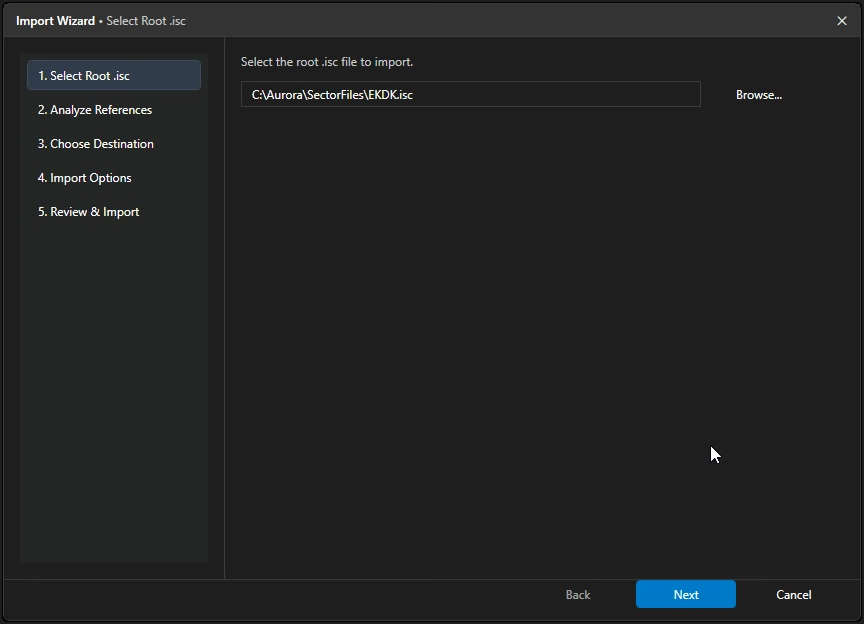
3. Analyze the references
On Analyze References, wait for Scan complete. Review the root file and the discovered includes and references. Scroll through the list to check for missing files. If you correct the source files, use Rescan to update the list.
Click Next when you are ready to continue.
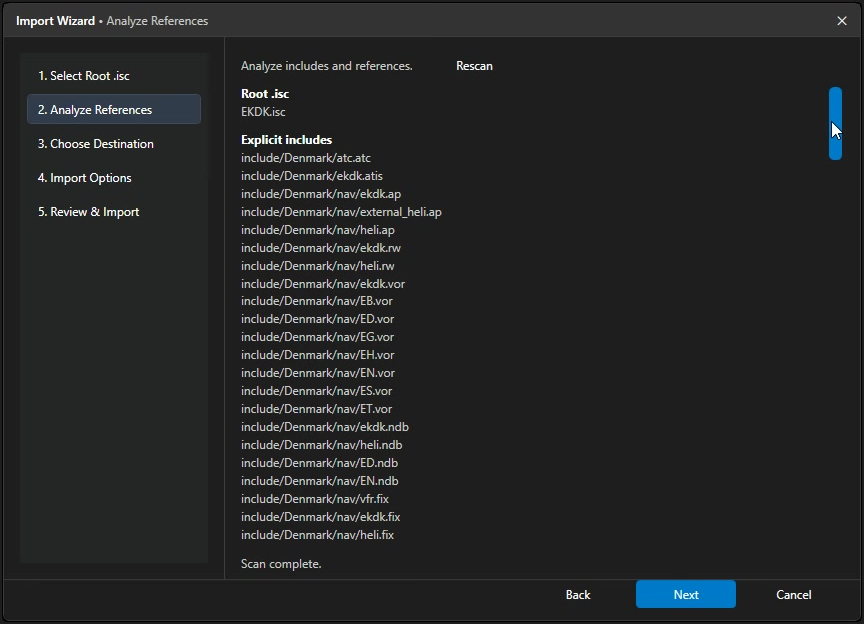
4. Choose where to create the project
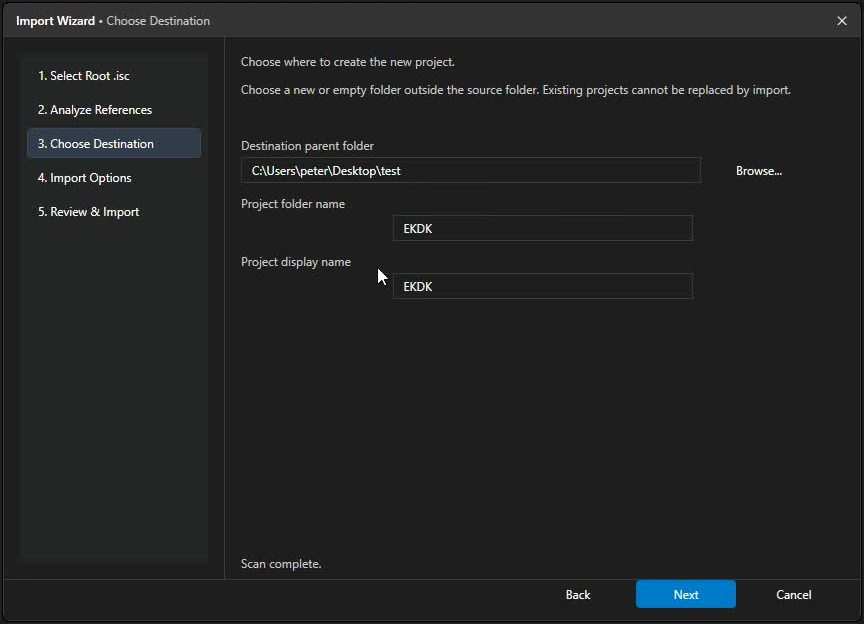
On Choose Destination:
- Use Browse… to select a Destination parent folder outside the source folder.
- Set the Project folder name; the walkthrough uses
EKDK. - Set the Project display name; the walkthrough also uses
EKDK. - Click Next.
The project folder is created inside the parent folder you choose. Use a new or empty project folder; the wizard cannot replace an existing project.
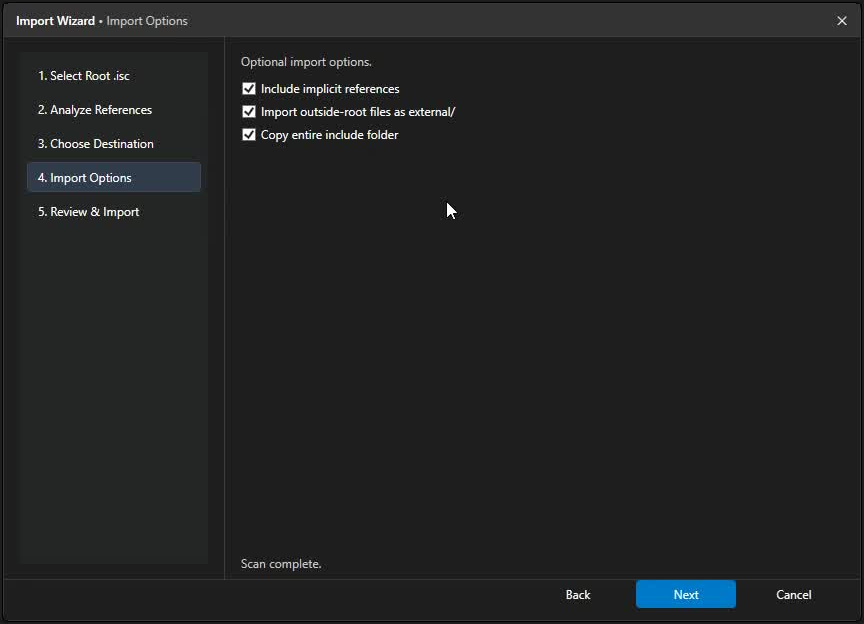
5. Choose the import options
The walkthrough enables all three options:
| Option | What it includes |
|---|---|
| Include implicit references | Additional supporting files discovered through the sector's implicit reference rules. |
| Import outside-root files as external/ | Referenced files outside the root sector file's folder, copied into the project's external/ area. |
| Copy entire include folder | The contents of the source include folder, including files beyond the discovered references. |
To follow the walkthrough, leave the first two options checked and check Copy entire include folder, then click Next.
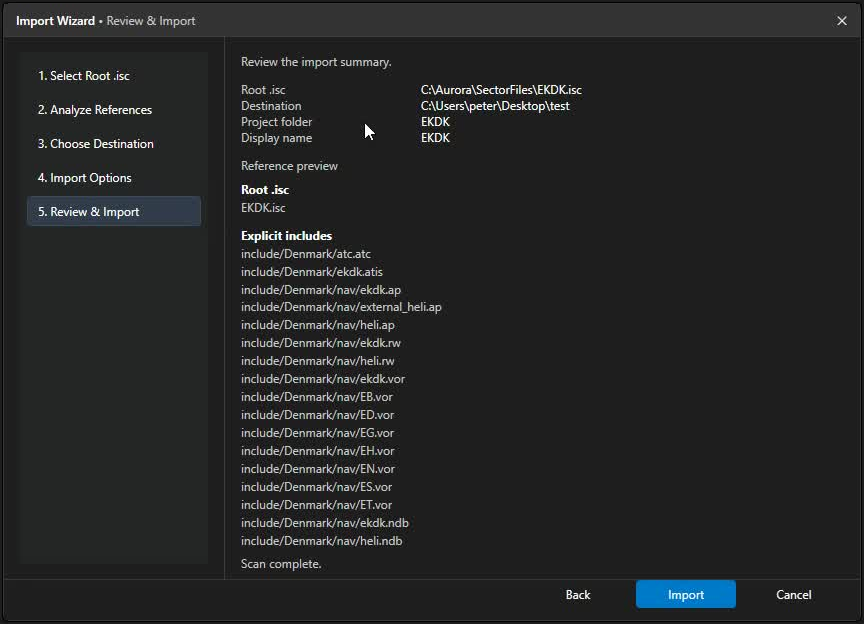
6. Review and import
On Review & Import, confirm the root .isc, destination, project folder and
display name. Scroll through the reference preview and check any missing-file
entries before proceeding.
Click Import and wait for Aurora Sector Studio to finish creating and opening the project.
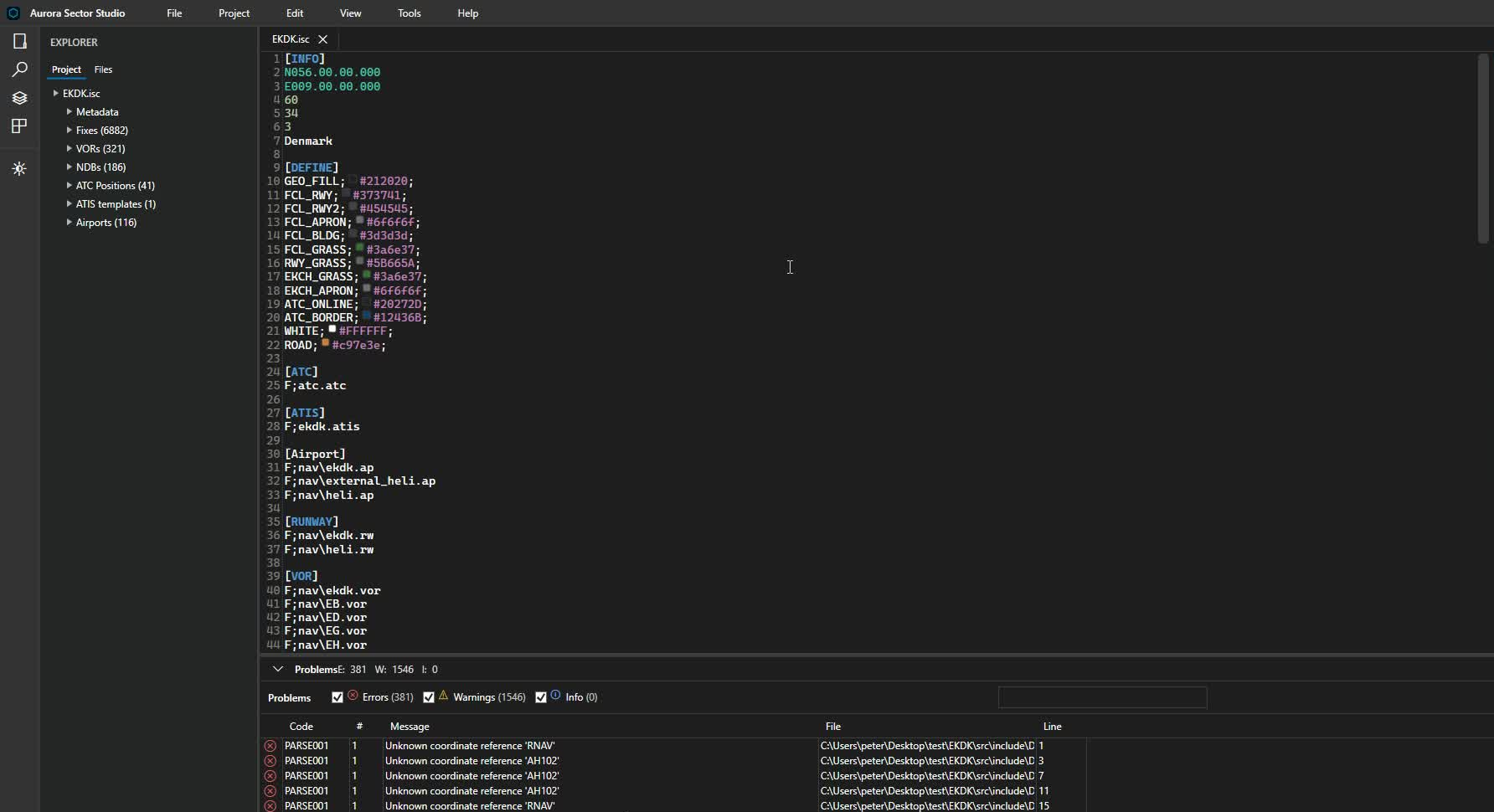
7. Check the opened project
The imported root .isc opens in the editor, and the Explorer shows the project's
sector data. Use the Files tab to browse its files and folders.
Check the Problems panel before continuing. The recorded EKDK import opens with errors and warnings listed; an opened project does not mean its sector data has passed validation. Review the reported entries as part of preparing the project.
You can reopen the imported project later using File → Open Project Folder… and selecting the project folder you created.